Clone Centre: copy one player's attributes to others with a preview.Real app screen, captured in demo mode with fictional data. Turkish interface shown; the app also has an English interface.
Wonderkid generator: generate attributes from role, age and PA.Real app screen, captured in demo mode with fictional data. Turkish interface shown; the app also has an English interface.Freezer: keep chosen values fixed while the editor is open.Real app screen, captured in demo mode with fictional data. Turkish interface shown; the app also has an English interface.Swap: exchange the clubs of two players with a preview.Real app screen, captured in demo mode with fictional data. Turkish interface shown; the app also has an English interface.TACTRIX Editor 27Export / Import: carry session edits over to another career.Real app screen, captured in demo mode with fictional data. Cropped view. Turkish interface shown; the app also has an English interface.TACTRIX Editor 27Pre-career files: season start and fixtures for a new career.Real app screen, captured in demo mode with fictional data. Cropped view. Turkish interface shown; the app also has an English interface.
Features in this module
Clone Centre
License requiredMay require the advanced switch
Copy chosen groups from a source player to target players with an old → new preview.
In the Clone Centre you first pick the source player, then the target players (or "My club"). You tick the groups to copy: Technical, Mental, Physical, Goalkeeping, Hidden attributes, CA / PA, Positions, Height, Feet, Fitness / Morale. The preview shows old → new values per target and the total number of changes.
The attribute groups are verified. The CA / PA and Fitness / Morale groups are unverified fields and depend on the permission in Settings.
How to use it
1Open Tools → "Clone Centre".
2Search for and select the source player; add the target players (or "My club") with "Add".
3Tick the groups to copy and check the preview.
4Press "Apply clone".
Limitations and notes
The CA / PA and Fitness / Morale groups need the advanced switch.
Choose a role, age and target PA; generate attributes automatically and apply them with a radar preview.
The Wonderkid generator produces an attribute profile that suits the role for the target players you pick. You choose the role (for example Finisher), age and target PA; a radar and attribute bars show the result before you apply it.
Writing the attributes is verified. If "Also write CA / PA values" is ticked, unverified fields are written too and the advanced switch is needed.
How to use it
1Open the "Wonderkid generator" tab.
2Choose the target player, role, age and PA.
3Check the preview and apply.
Limitations and notes
The guide lists no separate limitation for this feature.
Keep player and staff fields fixed, or allow them only to increase.
You add target players / staff and fields (for example fitness, morale, attributes) to the Freezer. "Fixed" always keeps the value the same; "Can only increase" allows increases and undoes drops. The list shows each entry's status and last correction time; the editor checks the fields at the set interval.
The "Automatic" switches in Quick Actions and the clubs' "Keep wage cap fixed" option use the Freezer too. Attributes are verified; the CA, PA, Fitness, Morale and Match form fields are experimental.
How to use it
1Open the "Freezer" tab; add the targets and fields.
2Choose a mode: "Fixed" or "Can only increase".
3Watch the entry's status; remove it from the list when needed.
Limitations and notes
The Freezer only works while the editor is open and connected to the game; when you close the editor, the values can change again.
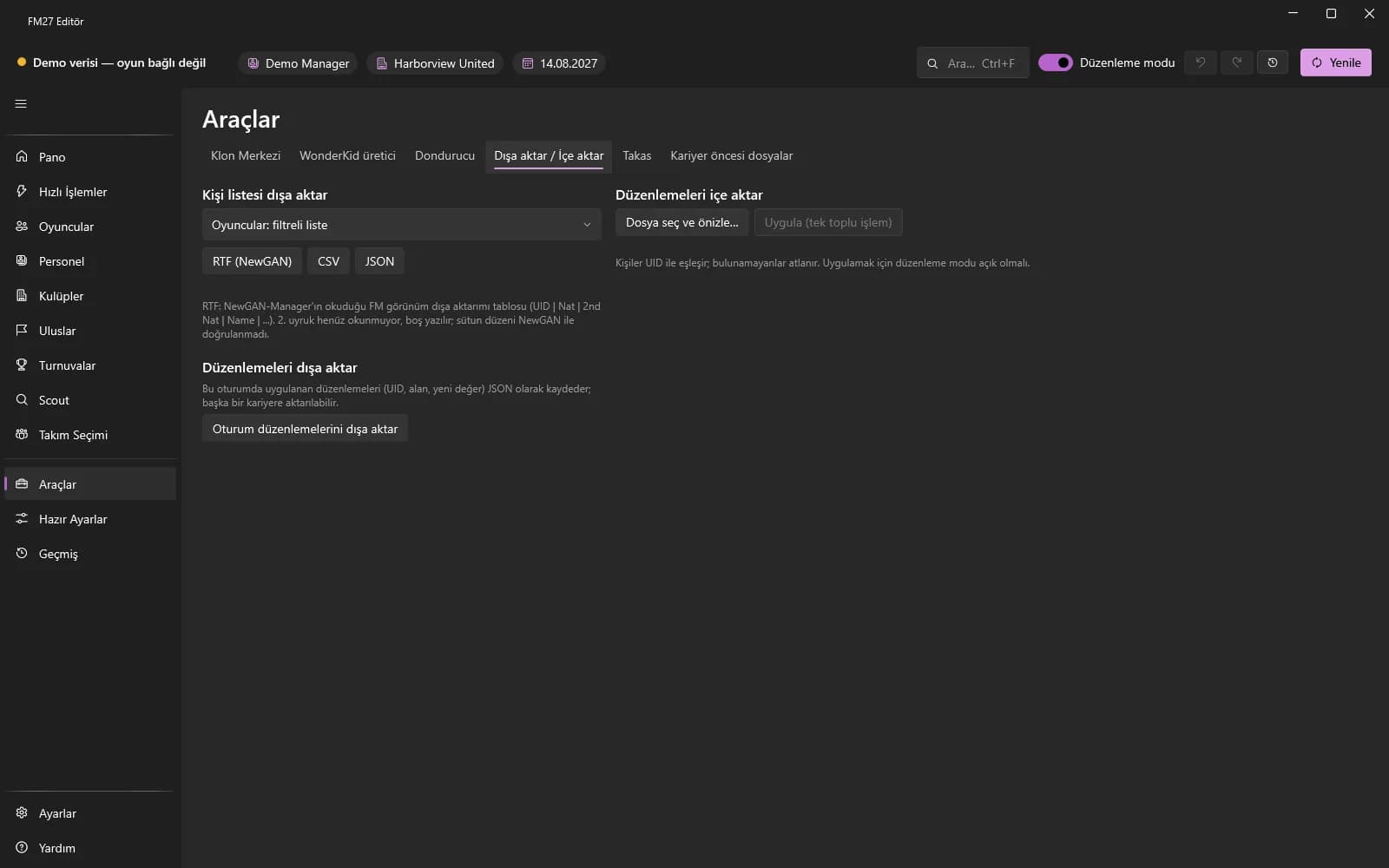
Export person lists as RTF, CSV or JSON; carry this session's edits over to another career.
"Export person list" saves the list you choose (for example the filtered player list) as RTF (NewGAN), CSV or JSON. "Export session edits" writes the edits applied in this session (UID, field, new value) to a JSON file.
In another career, load that file with "Choose file and preview…" and press "Apply"; the changes are applied as a single batch.
How to use it
1Open the "Export / Import" tab.
2Choose the person list and press RTF, CSV or JSON.
3Save your changes with "Export session edits".
4In the other career load them with "Choose file and preview…" and press "Apply".
Limitations and notes
Import matches people by their ID (UID); those not found are skipped.
The RTF column layout is not verified against NewGAN.
Exports do not write to the game; applying an import needs a license and Edit mode.
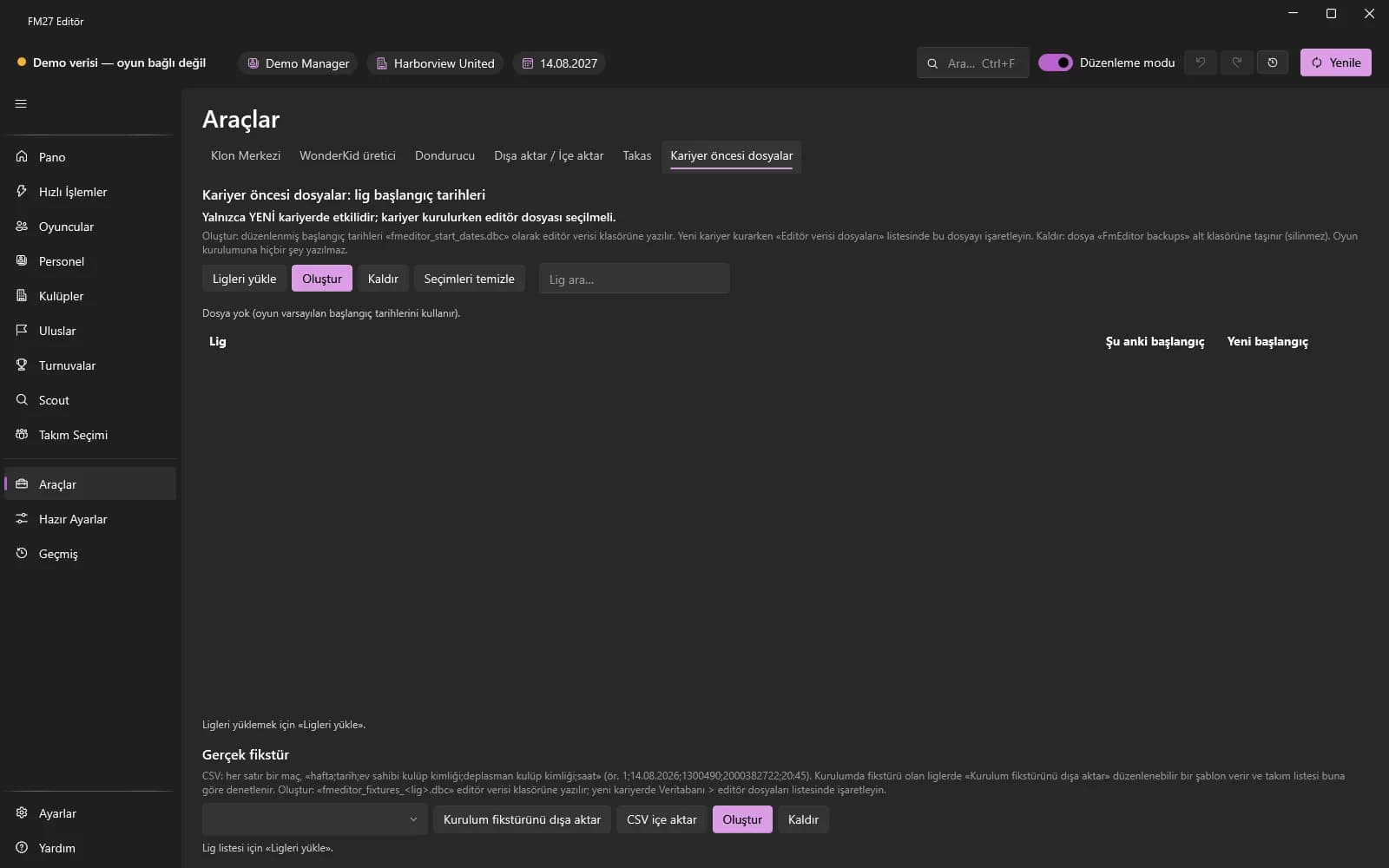
Create custom season start date and real fixture files for a new career.
This tool prepares the game's editor data files: a custom season start date for a league or your own fixture list. You can export the setup fixtures to edit them or import a CSV. Files are written to the editor data folder inside the game's Documents folder; nothing is written to the game installation.
When setting up a new career, tick the file's box in the Database → Editor Data Files list.