Presets
Save the bulk edits you make often and apply them in one click.
Last updated:
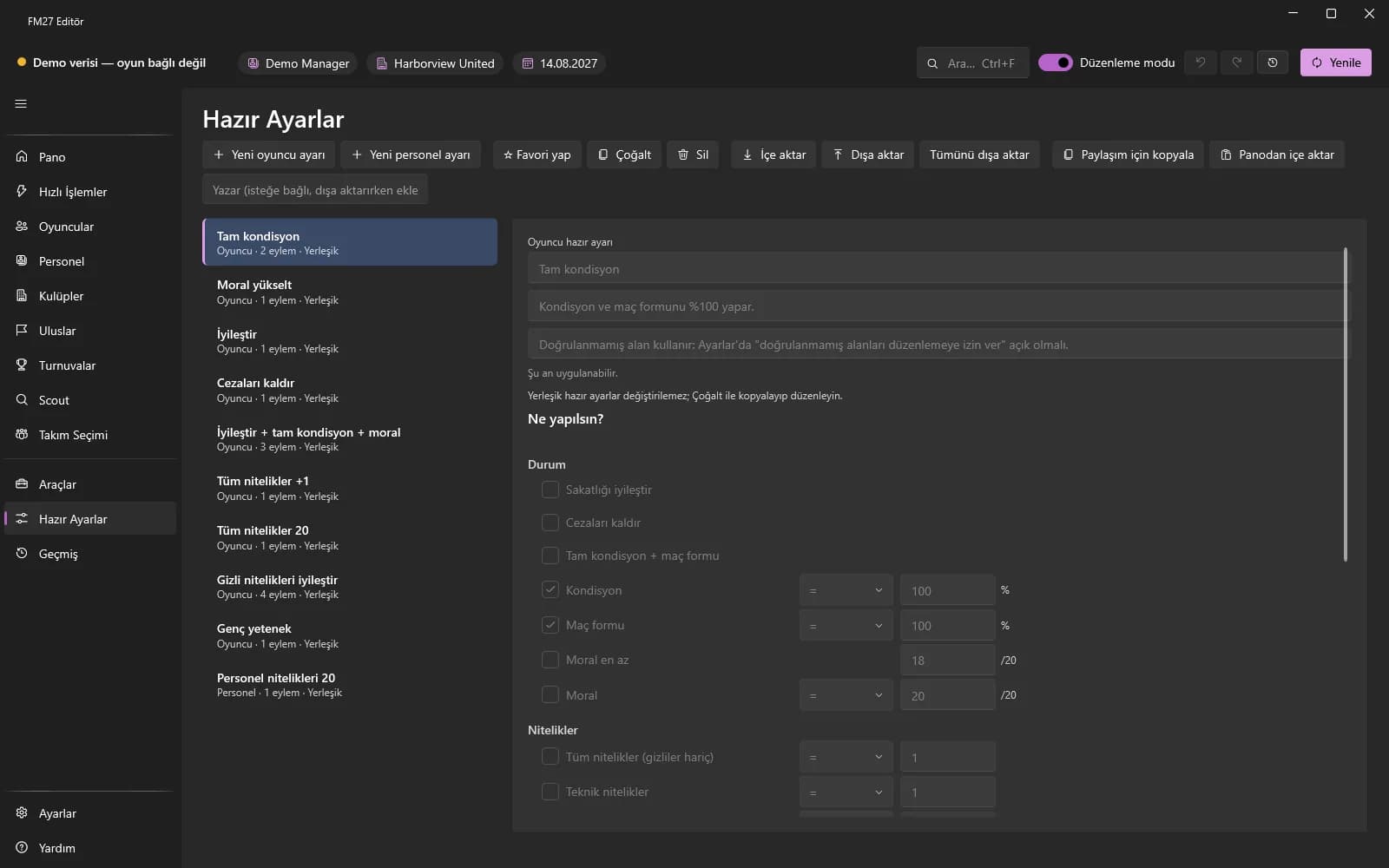
Creating and managing
- On the Presets page press “New player preset” or “New staff preset”.
- Type a name and description; tick the “What should happen?” boxes (heal injury, morale, fitness, etc.).
- In the “Advanced” section add field / operation (absolute or ±) / value rows and press Save.
- Mark it as a favourite with ★; favourites come first in Quick Actions and menus. Copy it with “Duplicate”.
Sharing (.fmpreset)
- Select a preset and press “Export”; “Export all” writes all of your own presets to one file.
- To add someone else's file press “Import” and choose the file. If the name exists you are asked “Rename” or “Overwrite”.
- “Copy to share” puts the selected preset on the clipboard as short text; the recipient presses “Import from clipboard”.
Applying
Select rows in the Players, Staff or Scout list and choose from the “Preset” menu, or apply from the “My presets” section in Quick Actions. Creating and managing presets works without a license; applying them to the game needs one.